PDP Pulse Setup & User Guide
Get your AI Product Assistant running on your Shopify store in 5 easy steps. Follow our visual screenshot guide, watch the full setup videos, and discover how to optimize conversions with conversational AI.
Full Step App Setup Video
Complete PDP Pulse Setup Walkthrough
Setup GuideWatch this complete walkthrough showing how to configure your AI engine, sync products, style the widget, and activate the theme app embed.
How PDP Pulse Setup Works
PDP Pulse uses an intuitive 4-step progressive onboarding checklist inside your Shopify admin that unlocks step-by-step. Once all steps are completed, your AI Product Assistant is 100% active on your live storefront product pages.
AI API Settings & Key Configuration
Connect your preferred AI intelligence provider (Google Gemini, OpenAI, or Anthropic Claude) to power answers for your shoppers.
What you need to do:
On the PDP Pulse Dashboard Quick Setup checklist, click "Open Settings" on Step 1.
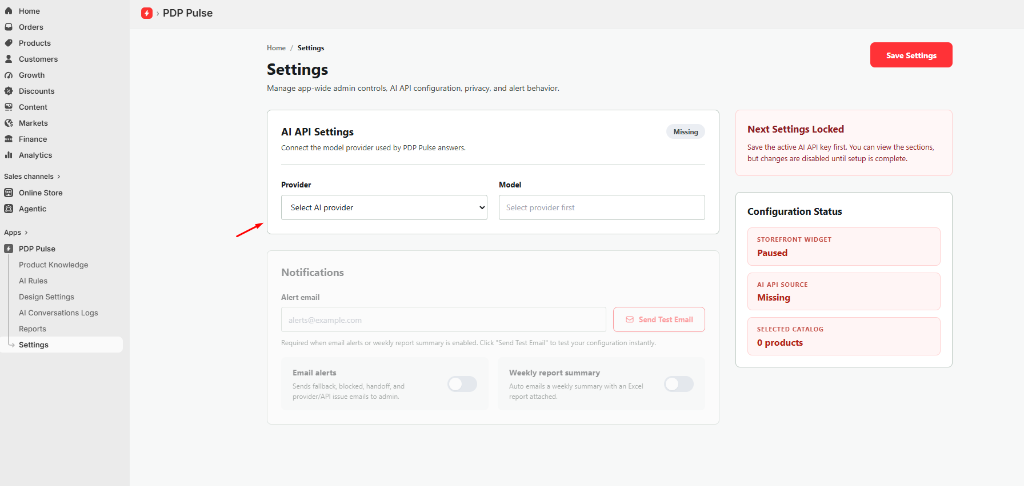
Select Google Gemini, OpenAI, or Claude. Paste your API key into the input field.
Click the red "Save Settings" button. Step 1 will turn into a green/red checkmark!
Step 1 Screenshots (Click to expand)
🔍 Tap any image to zoom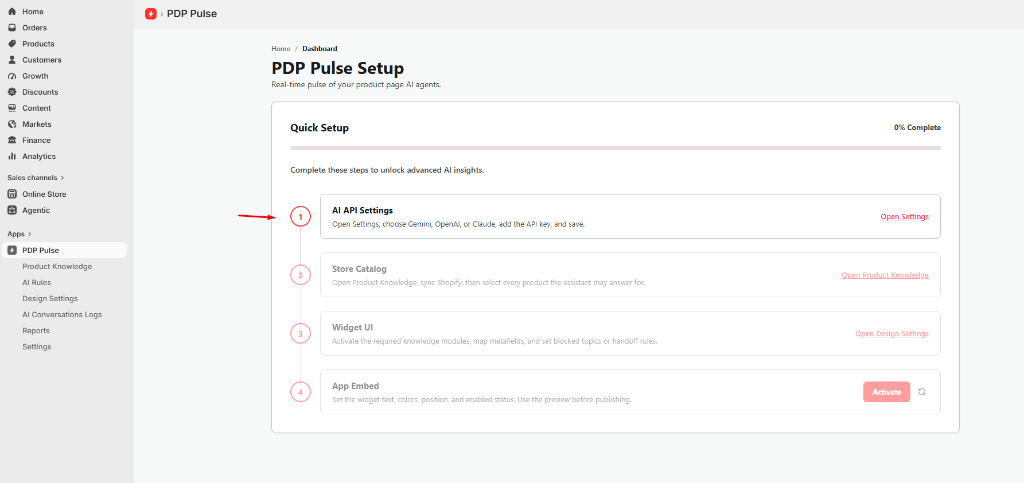
How to Create Your AI API Keys (Video Walkthroughs)
Select your preferred AI provider below to watch a quick tutorial on generating and pasting your API key:
Google Gemini API Key Walkthrough
Learn how to generate a free Gemini API key in Google AI Studio and configure PDP Pulse in under 60 seconds.
Product Catalog Sync & Selection
Synchronize your Shopify products into PDP Pulse so your AI agent knows every detail: descriptions, variants, prices, inventory, tags, and metafields.
What you need to do:
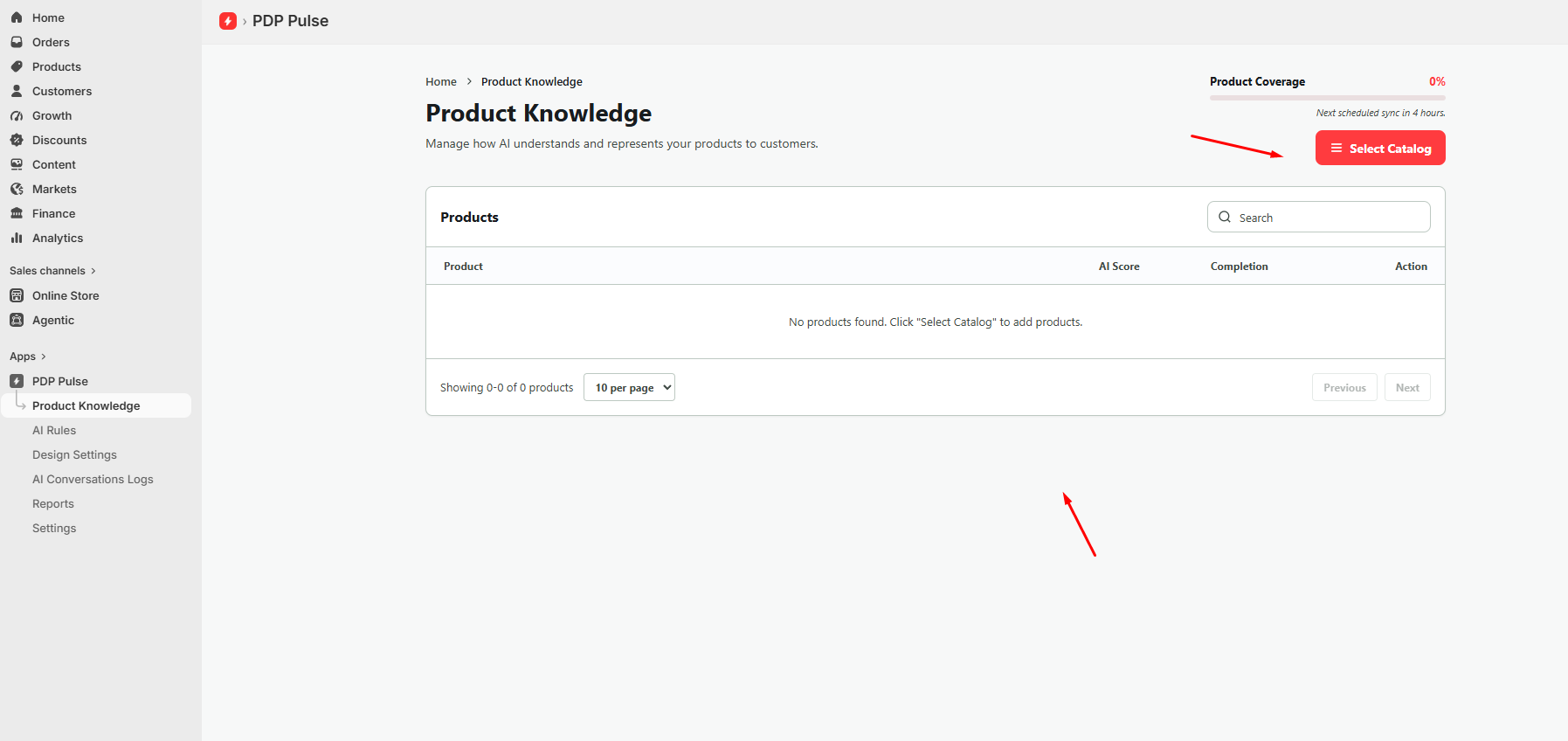
Click "Open Product Knowledge" on Step 2 of the Dashboard checklist.
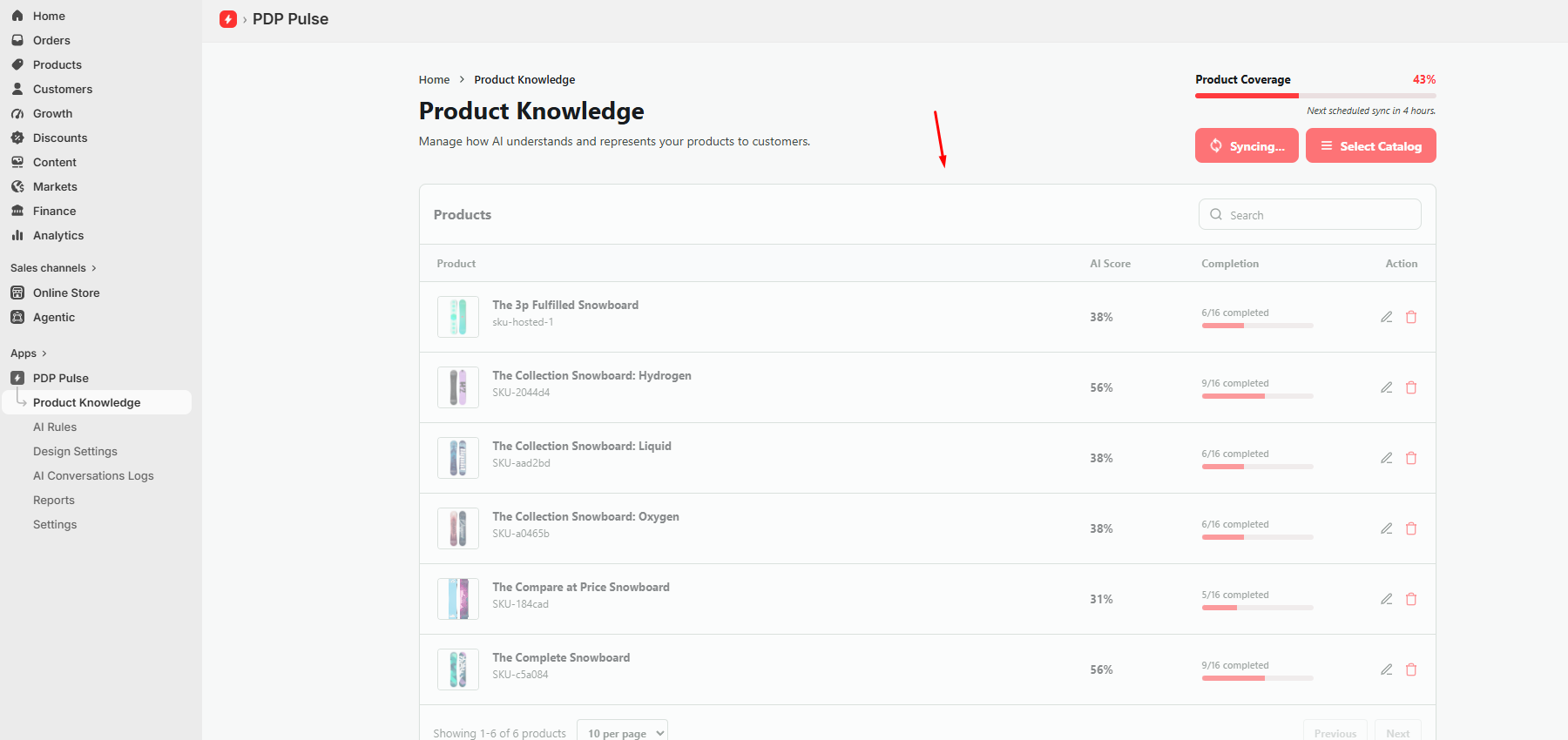
Click the "Sync Products" button. The status will show "Syncing..." and fetch all active items.
Click "Select Catalog" to choose which items the AI is authorized to answer customer queries on.
Step 2 Screenshots (Click to expand)
🔍 Tap any image to zoom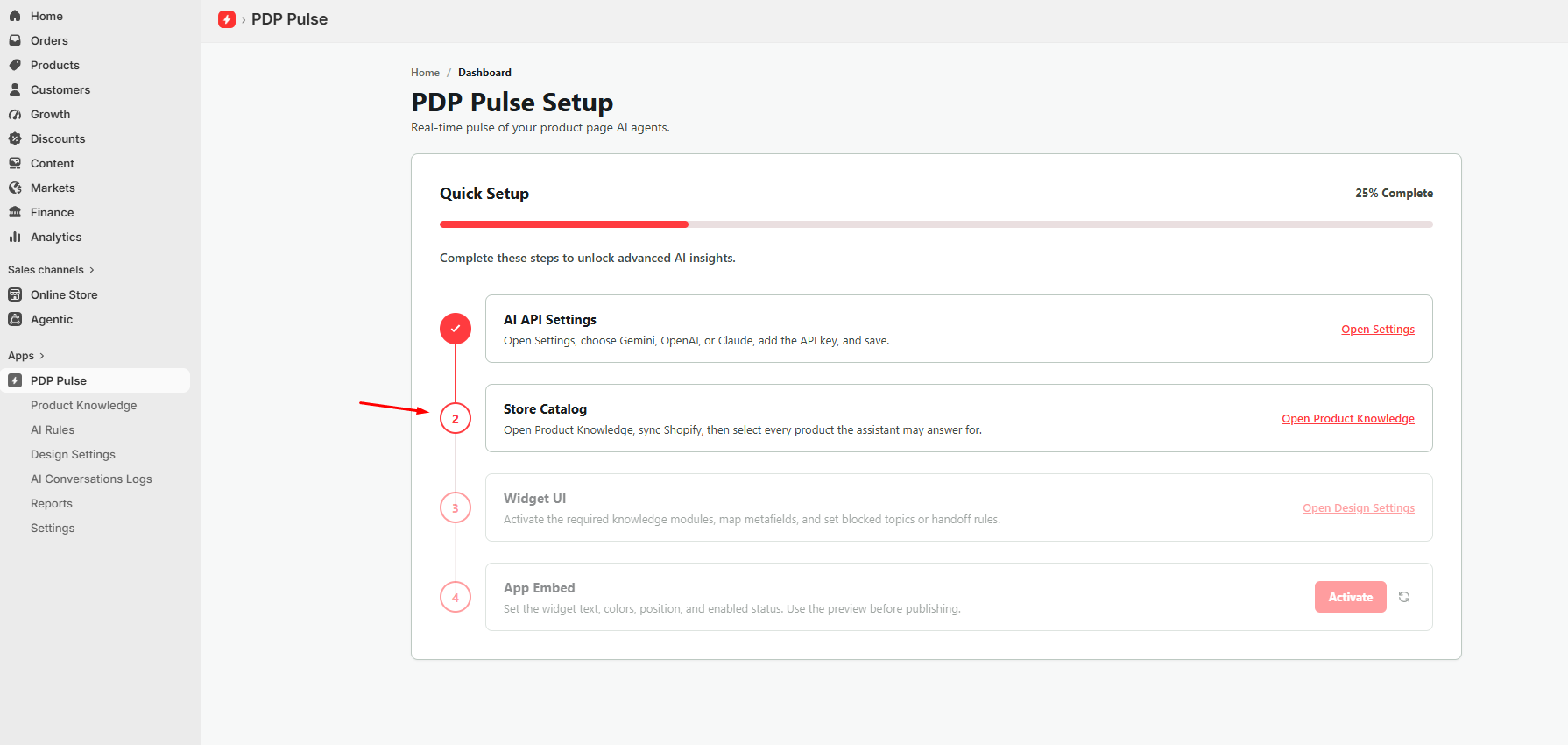
Widget UI & Assistant Activation
Turn the AI Assistant switch to Active, configure custom greeting questions, match your brand color palette, and preview the widget live.
What you need to do:
From the Dashboard checklist, click "Open Design Settings" on Step 3.
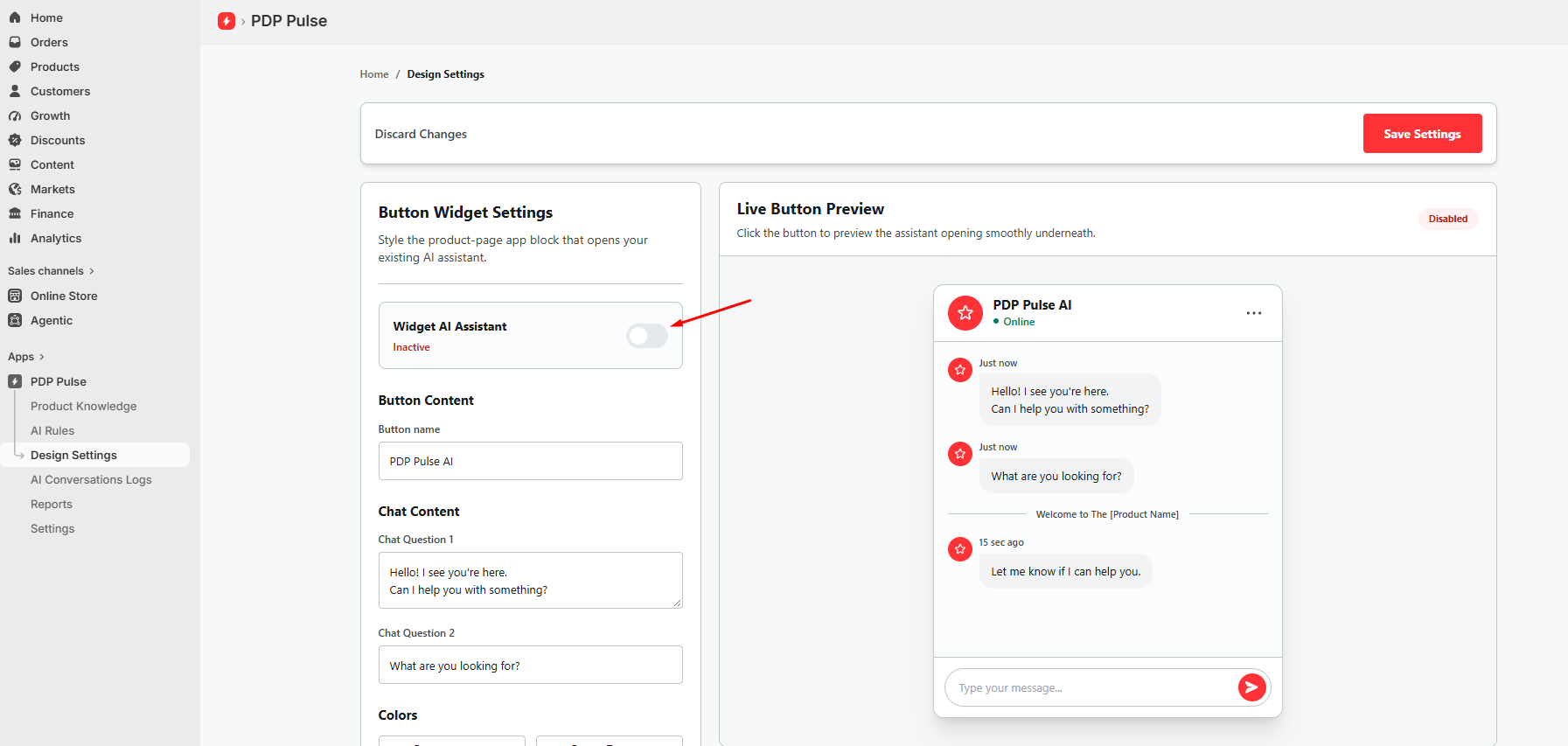
Switch the toggle from Inactive to Active to enable the assistant.
Customize button text, teaser questions, and brand colors. Check the live preview and click "Save Settings".
Step 3 Screenshots (Click to expand)
🔍 Tap any image to zoom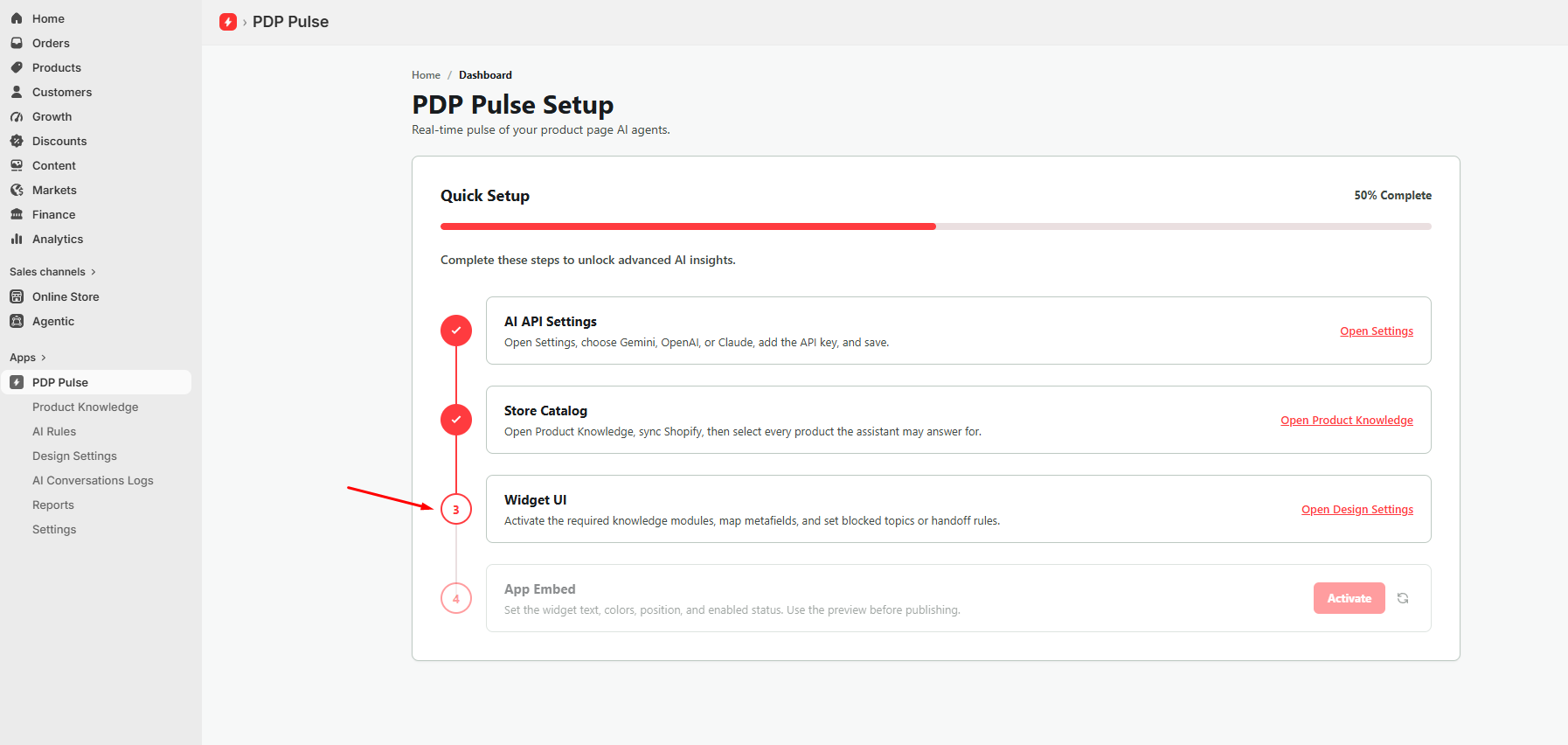
Enable App Embed in Shopify Theme
Activate the PDP Pulse block in your Shopify Theme Editor with a single click. Shopify Online Store 2.0 ensures 100% theme safety with zero code clutter.
What you need to do:
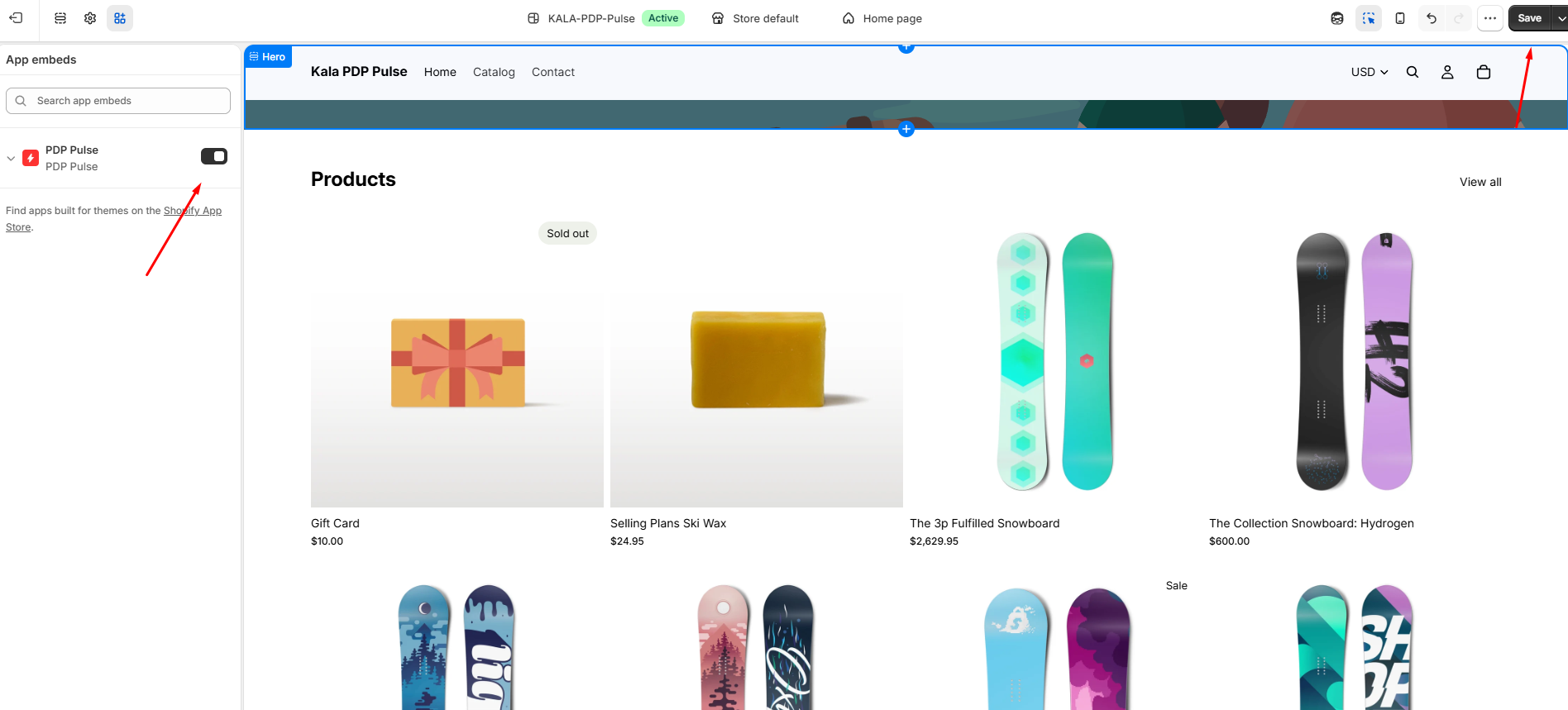
On Step 4 of the Dashboard checklist, click the red "Activate" button.
The Shopify Theme Editor will open automatically. Toggle the PDP Pulse switch to ON.
Click "Save" in the top-right header of your Shopify Theme Editor.
Step 4 Screenshots (Click to expand)
🔍 Tap any image to zoom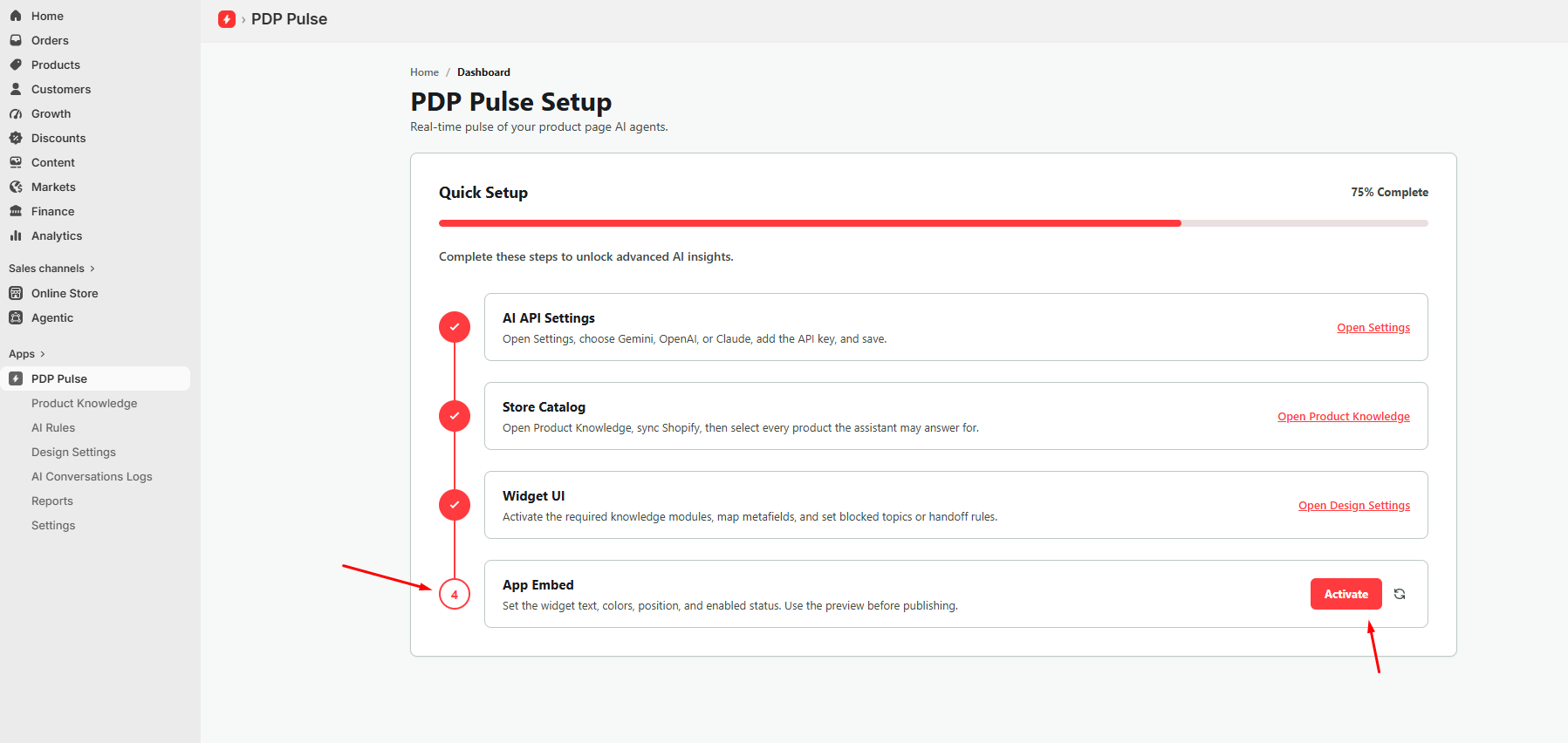
Live Storefront PDP Verification
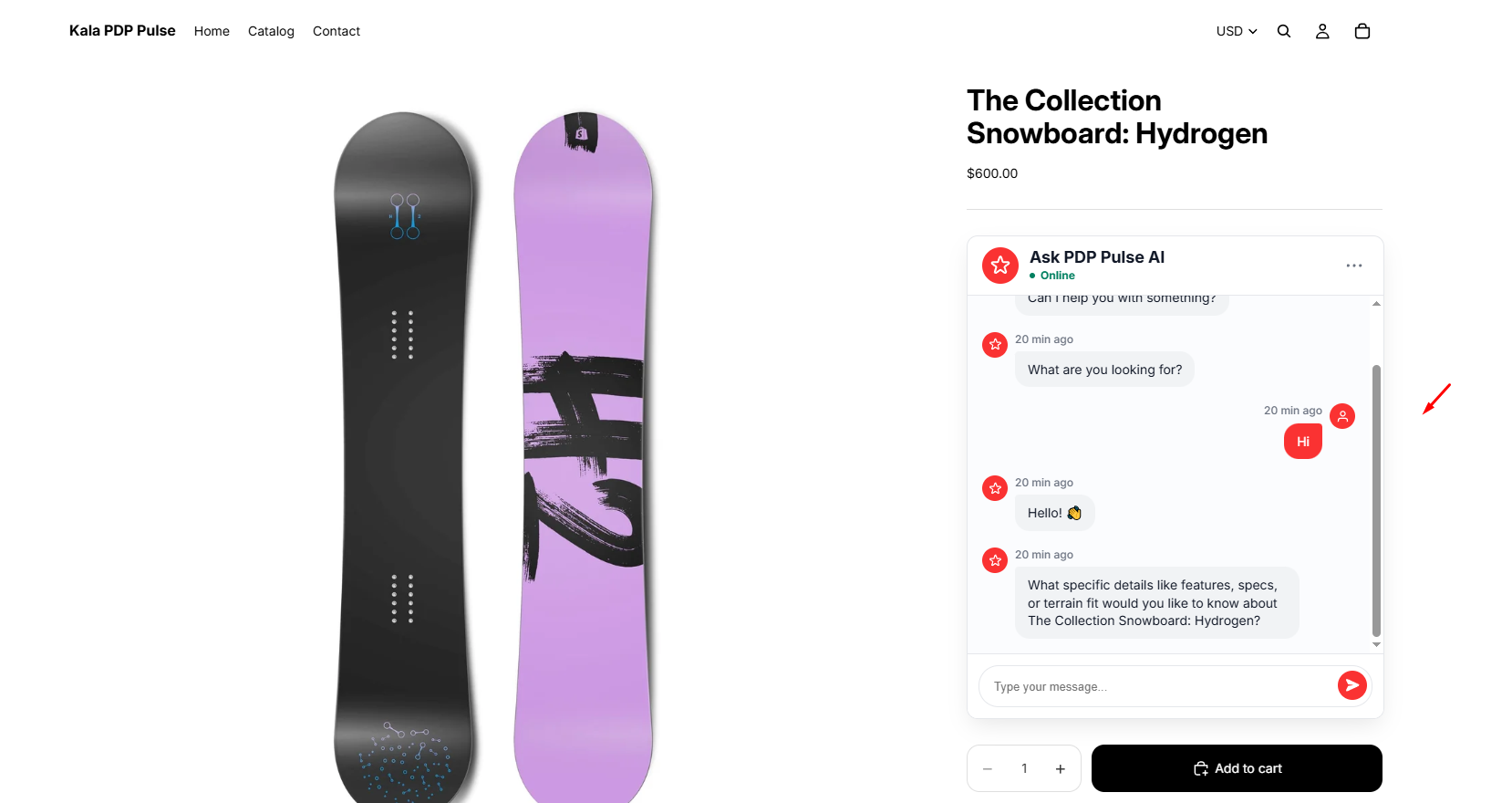
Your setup is 100% complete! Verify that all 4 checklist steps are checked on your dashboard, and test your AI Assistant on your live Shopify Product Detail Page (PDP).
Return to the PDP Pulse Dashboard: the progress bar reaches 100%, Step 4 badge changes to "Active", and all four milestones display satisfied checkmarks.
Open any product on your online store. Click the Ask PDP Pulse AI launcher and try asking questions about materials, sizing, compatibility, or warranty!
Step 5 Screenshots (Click to expand)
🔍 Tap any image to zoom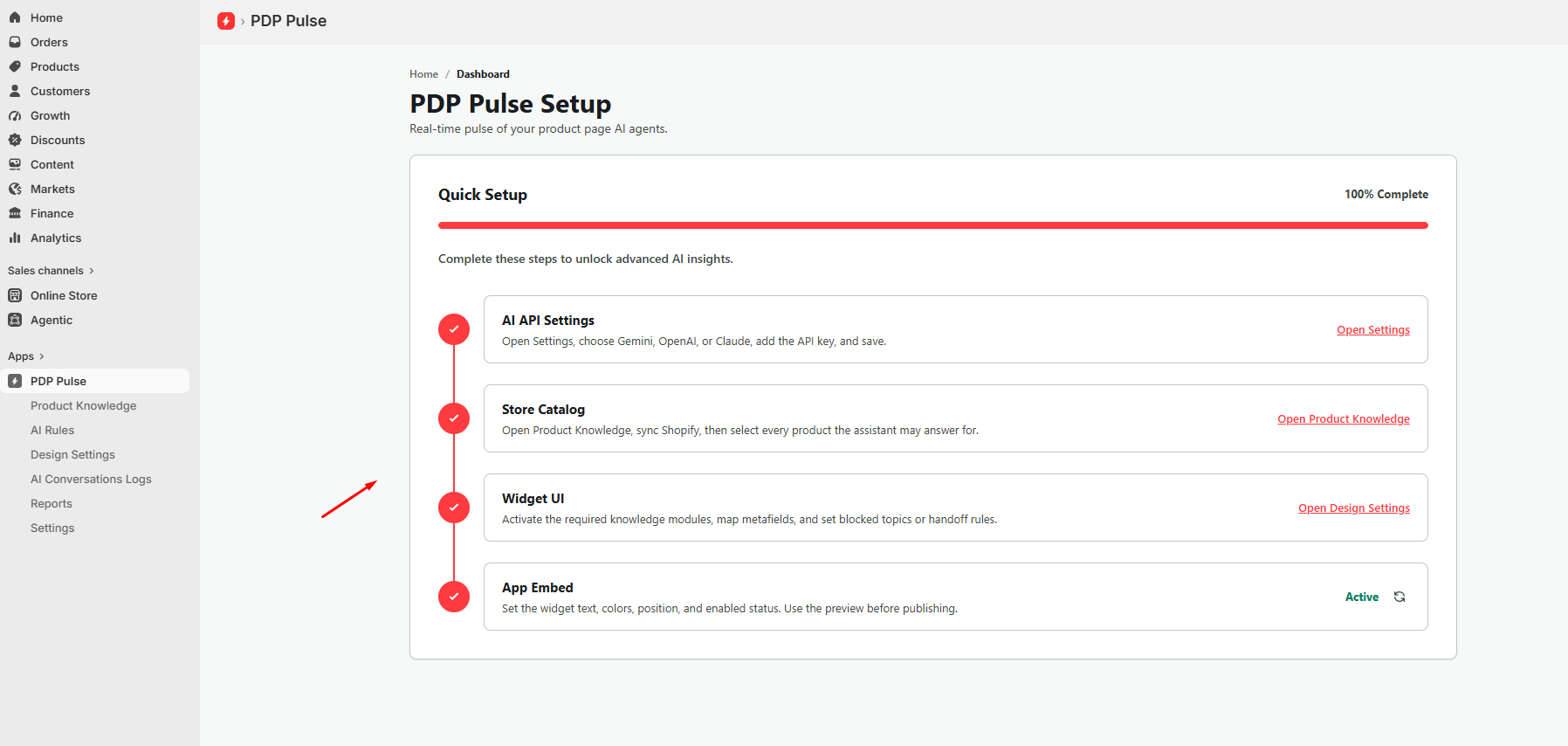
Store Knowledge Base & Policies
Teach your AI assistant company-wide policies, delivery terms, and brand answers
While product data answers item-specific queries, your Store Knowledge Base equips the AI to answer broader business and policy questions. You can add entries under key categories:
Transit times, express delivery charges, free shipping thresholds, and international customs info.
30-day return policy, exchange procedures, return shipping labels, and warranty claim steps.
General size recommendations, fabric care, washing directions, and measurement guidelines.
AI Rules & Brand Guardrails
Fine-tune the assistant's sales persona and establish strict safety boundaries
In the AI Rules manager inside your PDP Pulse admin, you can define strict guardrails to protect your store's reputation:
Select between friendly & approachable, luxury concierge, or technical product expert.
Prohibit the bot from discussing politics, mentioning direct competitors, or guessing discount codes.
Direct the AI to suggest complementary accessories (e.g. snowboard wax or bindings) when shoppers ask.
Conversation Logs, Analytics & XLS Export
Inspect shopper intent and download full logs for your marketing team
Every shopper conversation is saved in AI Conversations Logs. This allows you to discover real buyer hesitation and improve product copy:
See verbatim questions shoppers asked, which product triggered the question, and the exact response supplied.
Export filtered conversation records into an Microsoft Excel (`.xls`) file for offline customer sentiment analysis.
Troubleshooting & Frequently Asked Questions
Quick answers to common merchant questions
1. Why is the widget not showing up on my product page? ▼
Check the three quick prerequisites:
- Theme App Embed: Ensure the PDP Pulse toggle is switched ON and saved in your active Shopify Theme.
- Design Settings: Verify that the Widget AI Assistant switch is toggled to Active in Design Settings.
- AI API Key: Make sure you have entered and saved a valid API key (Gemini, OpenAI, or Claude).
2. Does PDP Pulse slow down my Shopify store's loading speed? ▼
No. PDP Pulse uses Shopify Online Store 2.0 App Embeds, which load asynchronously after the critical storefront elements (title, price, hero image) have finished rendering. It has zero impact on your Core Web Vitals or Google PageSpeed score.
3. How do I switch from Google Gemini to OpenAI or Claude? ▼
Simply navigate to Settings in PDP Pulse. Clear the saved key or choose your new provider from the dropdown, enter the corresponding API key, and click "Save Settings". The switch takes effect immediately across all live chats.
4. The AI says it cannot find product information ▼
Navigate to Product Knowledge and click "Sync Products", then make sure you selected that product under "Select Catalog". If the product was newly added to Shopify, run a sync to index it immediately.
Need Help Setting Up?
Our Shopify engineering team is ready to help you configure your API key, sync your catalog, or customize widget styling for your store.